New in Arux: A series of List View updates to improve how you see and organize data

In Arux, List Views are where you and your team will likely spend the majority of your time in the Admin Portal. Whether you’re reviewing enrollments, managing courses, checking invoices, or preparing communications, List Views help you quickly find and sort the information you need.
That’s why we’ve rolled out a series of updates to enhance the List View experience, making it more flexible, easier to personalize, and more efficient to work with throughout the day.
There is a lot to unpack, so we want to highlight how to get started and what to look for!
What are List Views in Arux?
Backing up, List Views are how you can view and report on records within Arux (People, Accounts, Courses, Organizations, Contracts, Buildings, etc.). Staff use List View information to access accounts and information, run reports, or send out SMS or email communications.
Turning on the new experience
Arux users can quickly access this new List View experience by clicking the Try the New List View button. The banner should be available from any List View you access. The banner allows you to switch between the updated and classic versions of List Views. It can also be toggled on within settings.

What's new within List Views?
While there are lots of new things you can do with Arux List Views, we can call out a few that are most popular among our customers. A lot of this functionality is available with a simple right- or double-click to see what options you have.
Freeze columns
You can now freeze important columns so they stay visible as you scroll horizontally through large tables. Freezing columns helps when teams are working with wide data sets and need to keep key information locked in place to compare records without losing context.

Drag-and-drop column organization
Admins can now drag and drop columns directly within a table to create the layouts they want. Organize your table in seconds without opening additional settings.

Advanced grouping options
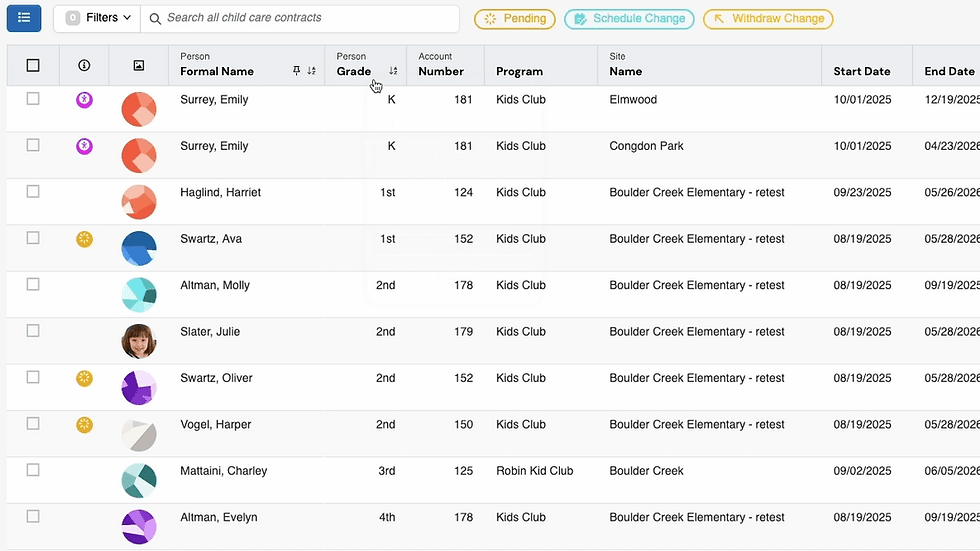
Grouping records is now more flexible. List Views already allowed admins to group data by selected columns. The updated experience expands those interactions to help organize large data sets into readable sections with detailed headers.
Enhanced bookmarked views
Bookmarked views help you preserve customized List Views you frequently use for quick access later. With the updated List View experience, bookmarked views are easier to access in the Header. Under the List View title, you can use the List View Bookmarks option to save and access bookmarked views.

Display row counts
One of the many new controls users have in List Views is the ability to display row numbers in the table. Enabling row numbers provides an easy-to-view count of rows in the List View results.

Show icon or status indicators
In the updated List View experience, users can choose to view full status indicators alongside the status icon. This option provides a little more context in the data table as you get more comfortable with the icons, if you prefer.
Customize your color experience
In addition to status indicators, you can now apply a color tint to List View records based on their highest priority status indicator. This can be toggled on within Your Settings.
Helping create small and impactful efficiences throughout your day
We built the updated List view experience around the day-to-day needs of after school and community education teams managing large amounts of information across multiple sites and programs. These updates can help you create:
Cleaner table layouts
Better visibility into notes and records
Easier-to-read data tables
Faster navigation across large data sets
Smoother interactions throughout the Admin Portal
As Arux continues to grow alongside district-led after school, enrichment, preschool, and community education programs, we’re improving the tools teams use most often.
And for many admins, that starts with List Views.


